
About EtreCheck
What can EtreCheck do for you?
- EtreCheck is a free tool that explains what is going on inside your Macintosh.
- EtreCheck consolidates information from over 50 different diagnostics tasks and displays it all on one concise report.
- EtreCheck can identify common problems like a failing hard drive or lack of system memory.
- EtreCheck can remove adware.
- Finally, even if the EtreCheck report doesn’t mean much to you, it may help someone on Apple Support Communities help you get your Macintosh back in good working order.
What does Etrecheck not do?
- EtreCheck never asks for your password. If your password is needed to delete adware, the Finder will ask for it.
- EtreCheck never changes any files or data on your Macintosh.
- EtreCheck does not expose any personal information.
Even if EtreCheck doesn’t detect any serious problems, the report it generates will help you investigate your problem and identify likely causes. Even if EtreCheck doesn’t report any problems at all, you then know that you don’t have any of the most common problems. You can then skip the most basic troubleshooting steps.
Read more about EtreCheck Features
Download EtreCheck
EtreCheck is a product of Etresoft, Inc. For more information about, visit http://etresoft.com.
All brand and product names on this site are trademarks of their respective holders. Read the Etresoft Privacy Policy
Copyright © 2016, Etresoft, Inc. All rights reserved.
Features
EtreCheck reports the following information:
- Exact Macintosh model.
- Installed RAM size and speed.
- RAM upgrade instructions from Apple (if applicable to your machine)
- Link to Apple technical specifications for your machine.
- Link to Apple user guide for your machine.
- Link to Apple service and warranty information for your machine.
- Installed hard disk model, manufacturer, size, type, and free space.
- Video graphics card and attached displays.
- Attached USB, Firewire, and Thunderbolt peripherals and external hard drives.
- 3rd party kernel extensions.
- Hidden software that is always running in the background.
- Information about your Time Machine backup.
- Any unusual system modifications.
- Tasks sorted by CPU usage.
- Tasks sorted by RAM usage.
- Free and used RAM.
- Kernel panic reports, crash reports, and other diagnostics.
EtreCheck can detect and report the following serious problems:
- Failing hard disk drive.
- Insufficient RAM.
- Failed background tasks.
- Potential security risks.
- Lack of Time Machine backup.
- Runaway processes.
- Obsolete software.
EtreCheck can even remove adware.
Each individual line in the EtreCheck report may not have much meaning by itself. But taken together, the whole report tells a story about what is going on inside your Macintosh.
Download
Download EtreCheck
Click the link to download EtreCheck for free:
- By default, Safari will automatically expand the download into an executable app that you can just double-click and run. If you have changed your default download settings, you may have to double-click the “EtreCheck.zip” file to expand it into an executable file that you can double-click to run.
- System requirements:
- An "Intel" Macintosh computer running OS X 10.6 “Snow Leopard” or later.
- Installation:
- EtreCheck does not need to be installed. You can run it right from your Downloads folder. Of course, you can also drag it into your Applications folder and run it from there.
- Uninstall:
- When you are done with EtreCheck, just drag it to the trash.
- Changes in this version:
-
EtreCheck version 3.0.6 have the follow changes:
- Improved compatibility with macOS Sierra.
- Fixes a crash in rare circumstances.
- Updates adware and whitelist signatures.
- Source Code:
- EtreCheck is an open source project. Download the source from GitHub, read it, compile your own version, or file some bug reports.
FAQ
- What does the report mean?
- The EtreCheck report is a snapshot of the overall health of your Macintosh. Each individual line in the EtreCheck report may not have much meaning by itself. But taken together, the whole report tells a story about what is or is not really going on inside your Macintosh. Each machine is different. In most cases, it is not possible to automatically determine what is going on. The EtreCheck report is designed to provide basic information about your hardware and software to make further diagnostics and troubleshooting quicker and easier. In some cases, EtreCheck can detect and report serious problems without human assistance.
- I have red lines in my EtreCheck report. How do I fix them?
- Red lines are only red to get your attention. Sometimes they are serious problems and sometimes they aren’t. If a problem is serious, EtreCheck will say why with "Drive Failure", "Insufficient RAM", "Obsolete software", or "Time Machine not configured". In other cases, red is used because there are few colours that show up clearly and distinctly in the report. Black and green already have different meanings.
- What do I do with the EtreCheck report?
- EtreCheck was designed for use on Apple Support Communities. Run EtreCheck, generate a report, and paste the report into a new question on Apple Support Communities. Be sure to include a good description of the problem. People who see your report will have a better idea about where the problem is and can give you more accurate instructions that will resolve your problem more quickly and easily than if you had not included an EtreCheck report.
- Is Apple Support Communities safe?
- Apple Support Communities is about as safe as the rest of the internet, for whatever that is worth. Like any internet site, there are people who sincerely want to help you and then there are people who only want to scam you. You can use EtreCheck to help differentiate between them. If someone asks you for an EtreCheck report, it means they want to help you and they want to do it safely. But if someone tries to tell you EtreCheck is harmful or a "junk app" - watch out! You are being scammed! This happens even on Apple Support Communities.
- Is EtreCheck safe?
- EtreCheck is designed for safety. It never asks for your password. If your password is needed to delete adware, the Finder will ask for it. It automatically hides any personal information. It never changes anything on your machine. It is cryptographically signed with my Apple Developer ID.
- Does EtreCheck fix malware and adware?
- Yes! As of version 2.9, EtreCheck can now detect and remove adware and malware. EtreCheck is not a traditional anti-virus tool that checks for only a handful of known Mac adware or malware, and millions of Windows malware that are harmless to a Mac user. Instead, EtreCheck maintains a whitelist of known, legitimate software. If you have software that is not on EtreCheck’s whitelist, EtreCheck will flag it as an “Unknown File”. These “Unknown Files” may include false positives that are new or ununusal, but legitimate, software that needs to be added to the whitelist. They could also include new adware or malware that a traditional anti-malware tool would miss. EtreCheck gives you the ability to delete the files you don’t recognize and update the EtreCheck whitelist with any valid software that needs to be added. Of course, EtreCheck will also scan for known adware, clearly flag it as “Adware”, and give you the opportunity to remove it.
- What if EtreCheck or people on Apple Support Communities can't solve my problem?
- Unfortunately, not all problems can be solved on a internet-based tech support web forum. Some problems require in-person diagnostics by a trained technical support engineer. You can always contact Apple Support directly or an Apple Authorized Service Provider. They can provide one-on-one assistance either in-person or via internet screen-sharing.
- Any other tips?
- Sure! Read Etresoft's Tips for a Healthy Mac
Tips for a Healthy Mac
Here are some tips that I have collected from helping people at Apple Support Communities.
-
Scams:
There is an epidemic of all types of scams today - from duct cleaning to water heaters. This tip is about one specific scam - the Safari pop-up. While browsing the internet, a dialog pops up telling you that:- You have won a prize
- The FBI has detected illegal activity
- Your computer is infected
- You need to download some software
None of this is true. You are asked to call a number. The pop-up cannot be closed. If you restart Safari, the pop-up returns.
If you update your Mac to OS X 10.10.4 or later, you can click OK or press the Return key (useful if the pop-up is partially off the screen) to close the pop-up. The next time the dialog appears, you will be able to close it permanently. On older systems, you can Force Quit Safari and then hold down the Shift key and restart Safari.
Important: Do NOT call the number! The scammers will take control of your Mac, show your cryptic, but harmless log files, make some low-level changes using the Terminal, and charge your credit card $500 or more. If this happens, you will have to:
- Call the police;
- Call your bank and cancel all of your credit and debit cards;
- Purchase identity theft protection;
- Restore your Mac to a state from before the hack; and
- Change all of your passwords on your Mac, e-mail accounts, and any internet accounts.
-
Computer Security:
The most important security feature on Macs is Gatekeeper. Go to System Preferences > Security & Privacy > General and make sure the setting Allow apps downloaded from: is set to Mac App Store and identified developers. Even with this setting, you will still have to confirm the installation of any software downloaded from the internet. Clicking the Cancel button is always a safe choice.Next, go to System Preferences > Sharing and make sure all sharing services are turned off. If you really need them, you can turn them on at home, but they should always be off when in public at a library, school, or coffeeshop.
Important: A Firewall will not protect you if sharing is turned on. Firewalls are tools for network administrators. The firewall on your Mac is a marketing gimmick. If you are concerned about security, keep all sharing services off. Do not rely on a firewall. It doesn’t do what you think.
Other pop-ups: From time to time, your Mac may display other kinds of pop-ups asking you to install some software or provide your password. Again, clicking the Cancel button is always a safe choice. If you do need to install a Flash update, go to the Adobe site yourself and download the update.
-
Adware:
Another modern Mac epidemic is adware. I strongly recommend uBlock to block most ads. If you think you may have installed some adware, run EtreCheck. EtreCheck can now detect and remove adware. -
Your Mac doesn’t need any "clean-up" software:
It will run better the less you tinker with it. -
Malware, Trojans, Viruses:
Even though there is an epidemic of scams and adware for Mac users, true malware like trojans and viruses are still extremely rare. You do not need any antivirus software on a Mac. Most Mac antivirus software checks your Mac for Windows malware that is harmless to you. It will also likely slow down your Mac and cause problems. Apple includes a more efficient malware scanner in OS X than anything you can find elsewhere. -
Update your Mac:
It is important to keep your Mac updated. Apple no longer provides security updates to old version of the operating system. If you have installed any low-level system modifications, you should run EtreCheck to find out what they are and make sure they will run on the updated system before you perform the update. These programs will be listed under Kernel Extensions, Launch Daemons, Launch Agents, and User Launch Agents. Anything listed under Startup Items definitely will not run on OS X 10.10 "Yosemite" or later and should be updated. -
Upgrade your Mac:
Before updating your Mac, it is important to make sure your Mac can run the latest version of the operating system. Current versions of OS X are much slower and more demanding than they were even a couple of years ago. You may need additional RAM and an SSD upgrade. Your EtreCheck report will indicate if your machine has upgradeable RAM. Not counting iMacs, any machine that has upgradeable RAM can probably also be upgraded to an SSD. -
Backups:
Backups are critical. All Mac users should be running Time Machine. Other kinds of backups may be useful in certain situations, but Time Machine should be your primary backup. -
Installing Software:
All Mac users should use the Mac App Store whenever possible. Apps from the Mac App Store are regularly updated, reviewed by Apple for quality and security, and easily removable. Before installing any software from any other source, make sure you know how to remove it. I strongly advise keeping the original download files because they sometimes contain uninstallers or uninstallation instructions.Important: Any software that uses a dedicated installer that requires your password may be difficult to uninstall.
-
Removing Software:
To uninstall software downloaded form the Mac App Store, go to the LaunchPad, find the app’s icon, click on it, and hold down. The icon will be begin to shake and an X button will appear in the corner of the icon. Click the X to uninstall.If you have installed software using any other method, the only safe way to remove it is with a vendor-provided uninstaller or uninstallation instructions. Never use an "app zapper". Never try to manually delete files from hidden directories. Some apps are able to uninstall themselves. If you have partially deleted an app, you may need to reinstall it before using the proper uninstallation procedures.
-
Getting Help:
If you need further help, you can always post a question and your EtreCheck report on Apple Support Communities. Just remember that although the site is hosted by Apple, the people answering questions are other Apple customers like you. There are no Apple technical support people involved. It is no different than any other internet forum. Most people are polite, professional, and helpful. But there are also trolls who will say anything to get 5 or 10 “reputation points”.Don‘t forget that you can always contact either Apple Support directly or an Apple Authorized Service Provider. They can provide one-on-one assistance either in-person or via internet screen-sharing that is much faster and more efficient than any internet discussion forum.
There is lots of bad advice on the internet and some good advice, but it can be difficult to tell the difference. Even good advice from a few years ago could damage your Mac today. Etresoft, Inc. cannot guarantee the accuracy of any suggestions you may receive on an internet discussion forum.
How to use EtreCheck
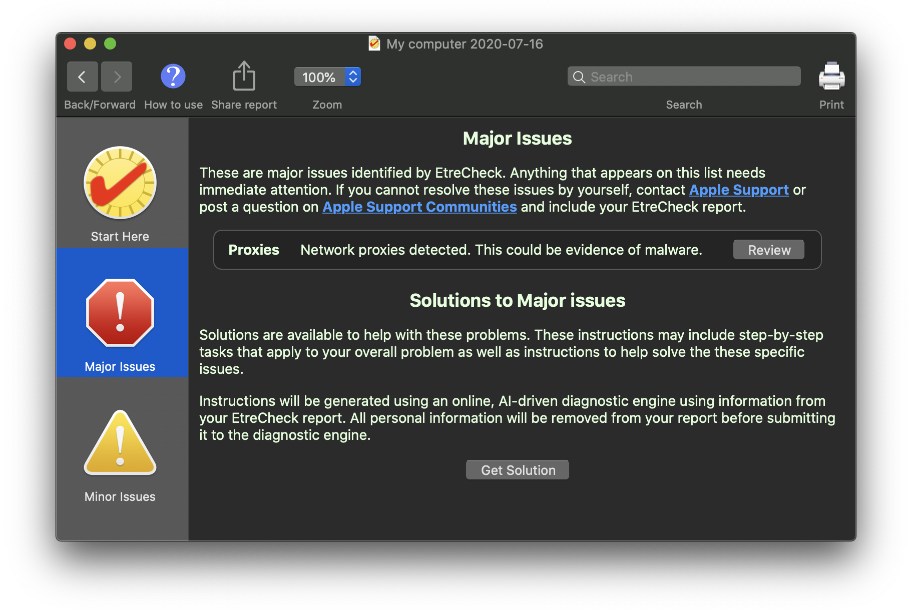
EtreCheck is frequently recommended on internet discussion forums like Apple Support Communities. EtreCheck was designed to help provide the kind of information members of Apple Support Communities need when helping you with your Mac. But you can run EtreCheck and read the report yourself. The following is an explanation of how to use EtreCheck and the meaning of each section of an EtreCheck report.
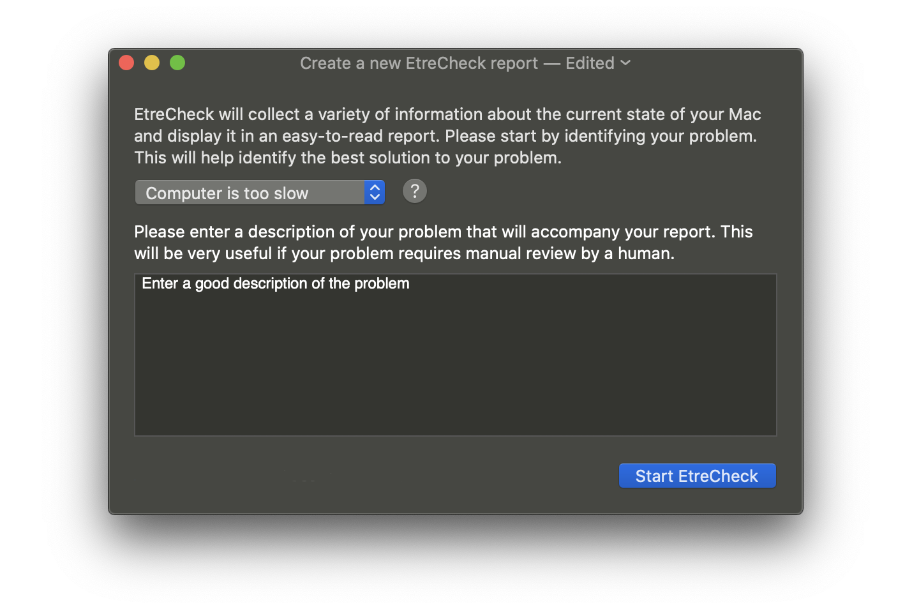
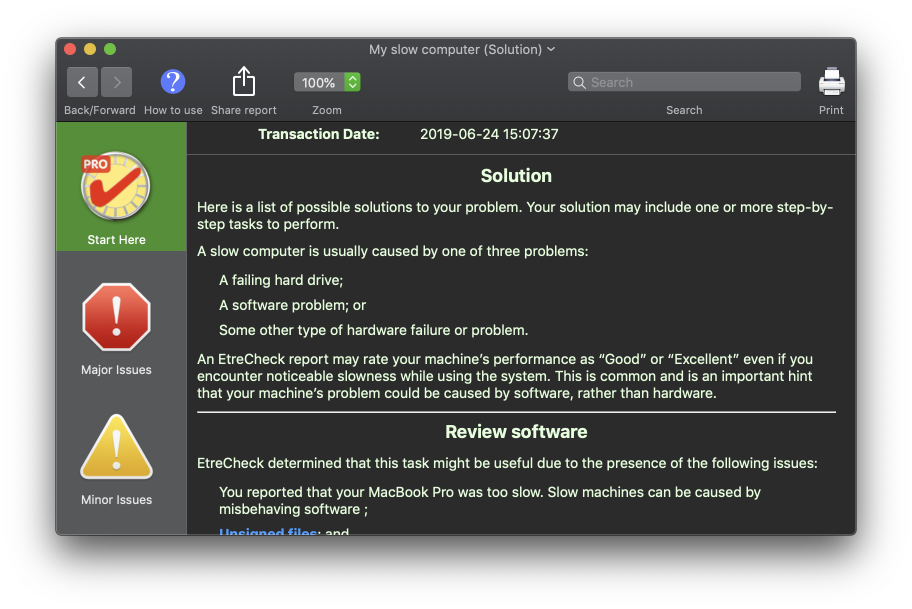
When you first run EtreCheck, you will have to choose a problem that best describes your issue. You should also include any other details you can think of in the problem description.
You can click the Options button to turn on more diagnostics. This is an advanced feature and should not be used when posting an EtreCheck report online.
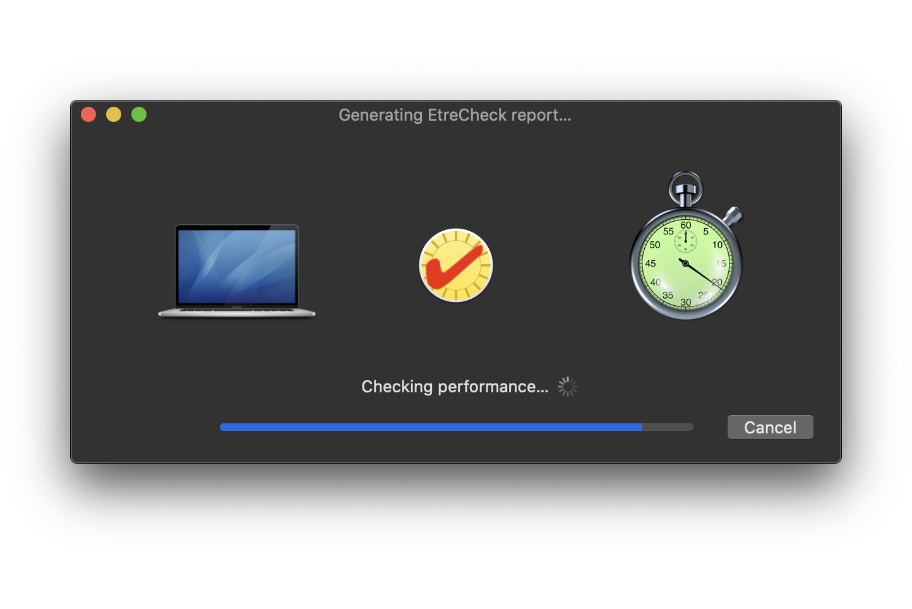
Finally, click the Start EtreCheck button to generate your EtreCheck report.
-
Header:
This section contains basic information about EtreCheck itself, when you ran it, and how long EtreCheck took to run. People sometimes omit this section but it can be very useful as a rough estimate of your machine's performance. If EtreCheck takes more than 5 minutes to run, you have problems.
This section also explains that the EtreCheck report is a hypertext document. You can click on virtually any part of the report for more details. -
Problem:
This is the problem you described when you first ran EtreCheck.
-
Hardware Information:
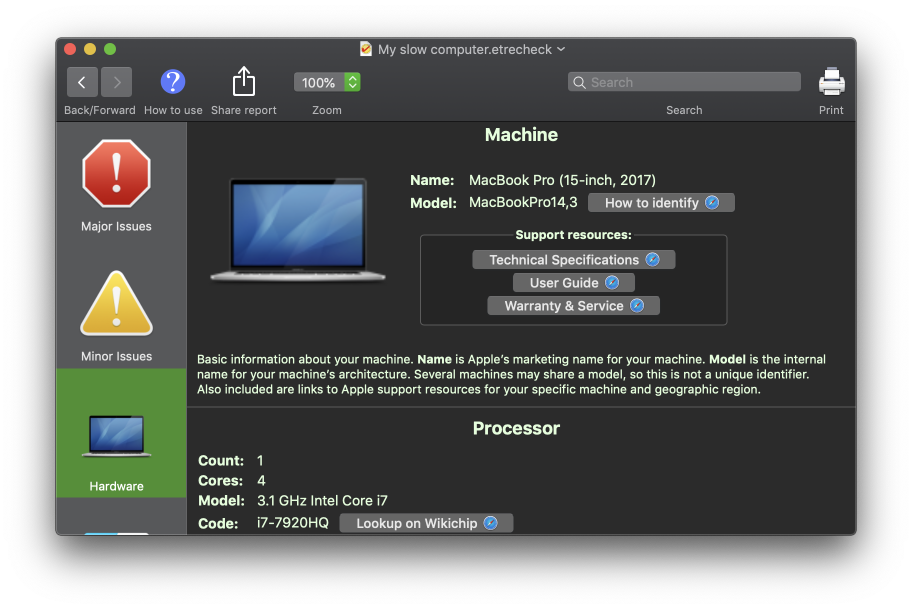
Basic Information about your machine - the number of processors, cores, and RAM. This section connects to Apple support servers to return the ”marketing name” of your machine that Apple uses. This section also includes links to Apple support resources for your machine such as technical specification, user guides, warranty & service, and RAM upgrade instructions.
-
Video Information:
Your graphics card and any attached displays. -
System Software:
Your operating system version, including specific build version. Also reports the time since your machine has been restarted. If possible, you should run EtreCheck on your machine while it is encountering problems. EtreCheck results will be more valuable if you run it before restarting.
-
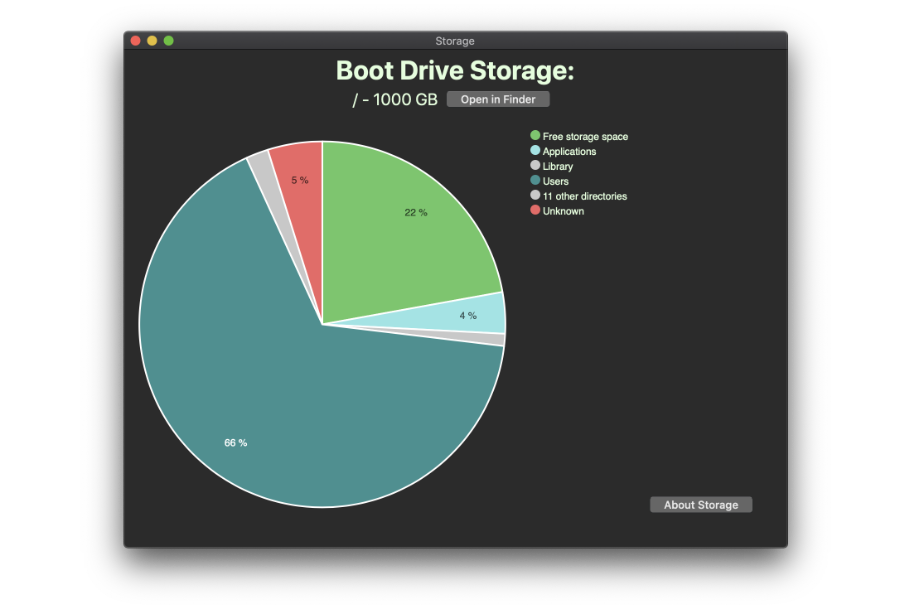
Disk Information:
This may include several hidden volumes used for startup and recovery. This section may report low disk space, disk errors, or SMART failures. If your report lists disk errors or SMART failures, you probably need to replace your hard drive. Disk Utility cannot repair these errors.
-
USB/Thunderbolt/Firewire Information:
Any USB, Thunderbolt, or FireWire peripherals, such as external disk drives. -
Configuration files:
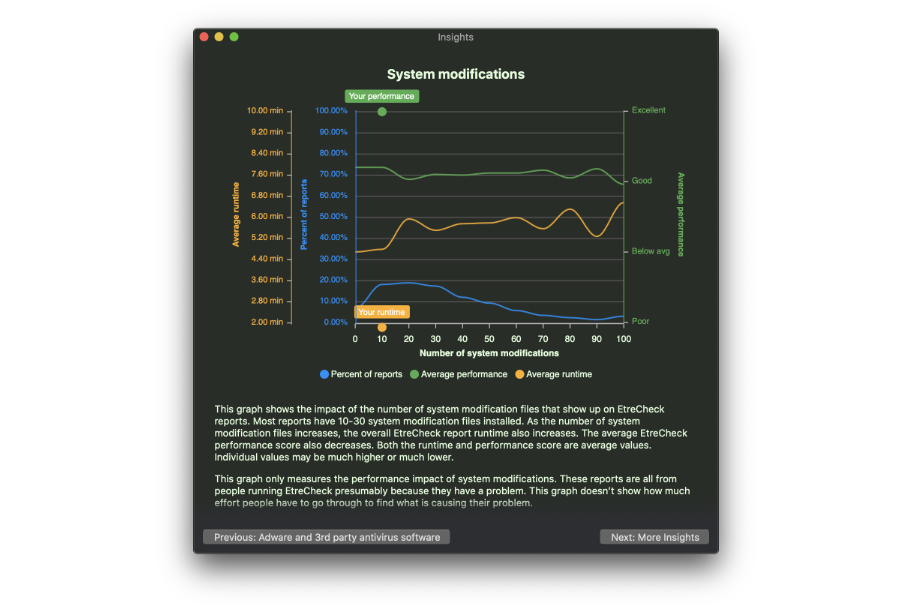
If there have been unusual, low-level changes to your system configuration files, they will be listed here. This may not necessarily be a problem unless you don't recognize these files or know what these changes are.
-
Gatekeeper:
Your current GateKeeper settings. This should always be set to "Mac App Store and identified developers".
-
Unknown files:
Possible ad-injection software or malware. EtreCheck maintains a whitelist of known, legitimate software. If you have software that is not on EtreCheck’s whitelist, EtreCheck will flag it as an “Unknown File”. These “Unknown Files” may include false positives that are new or ununusal, but legitimate, software that needs to be added to the whitelist. They could also include new adware or malware that a traditional anti-malware tool would miss. EtreCheck gives you the ability to delete the files you don’t recognize and update the EtreCheck whitelist with any valid software that needs to be added. Of course, EtreCheck will also scan for known adware, clearly flag it as “Adware”, and give you the opportunity to remove it.
-
Adware:
Ad-injection software. EtreCheck now allows you to easily remove this software.
-
Kernel Extensions:
Lists any 3rd party kernel extensions. These extensions actually modify your operating system. Many may be necessary for hardware or software you want to run. However, because they run deep within the core of the operating system, they can destabilize your computer. The most common result from misbehaving kernel extensions are kernel panics where “you need to restart your machine”.
-
Startup Items:
These items start up with your Macintosh. They no longer function on OS X “Yosemite” or later. If you have items listed here, then you need to contact the developer of that software and update it. -
Problem System Launch Agents:
These are any low-level, Apple-provided parts of your operating system that run hidden. Any failure that appears here may indicate a problem with your system. There may be a long list of killed processes due to memory pressure. This means your computer needs more RAM.
-
Problem System Launch Daemons:
Same as above. -
Launch Agents:
Same as above, but for 3rd party software. It is common for software to use 3rd party launch daemons. However, this software is always running in the background. this software can include various types of "clean up" or scam-ware software that you really don’t need.
-
Launch Daemons:
Same as above. -
User Launch Agents:
Similar to the above. The biggest difference is that this software runs under your normal user account instead of as the super-user. This section may include evidence of scam-ware or adware. -
User Login Items:
These are programs that start as soon as your login to the computer. If there are many items, you can run out of memory or your machine could run slowly.
-
Other apps:
There are many programs that are started dynamically. Sometimes these are helpers, modern login items, or just about anything else. They may not be visible, so EtreCheck prints them here.
-
Internet Plug-ins:
These items could impact your web browsing. -
Safari Extensions:
These items could impact your web browsing.
-
Time Machine:
It is critical to have a good backup. All Mac users should be running Time Machine. -
Top Processes by CPU:
These are the apps that are currently using the majority of your processing capacity. -
Top Processes by Memory:
Same as above, but for memory usage. -
Virtual Memory Information:
Unfortunately, as of OS X “Yosemite” and later, this section has little value. OS X tries to use all of your RAM so you should have very little free RAM. OS X “Yosemite” and later may perform poorly on machines with only 4 GB. Older machines with only 4 GB RAM and an old hard drive may run particularly bad on OS X “Yosemite” and later. -
Diagnostics:
Recent diagnostic files generated by your system. EtreCheck includes crash, hang, and CPU reports for the past three days. All kernel panic reports are also included, as is your most recent self-test results. For best results, run EtreCheck as an Administrator user (this is the default setting).
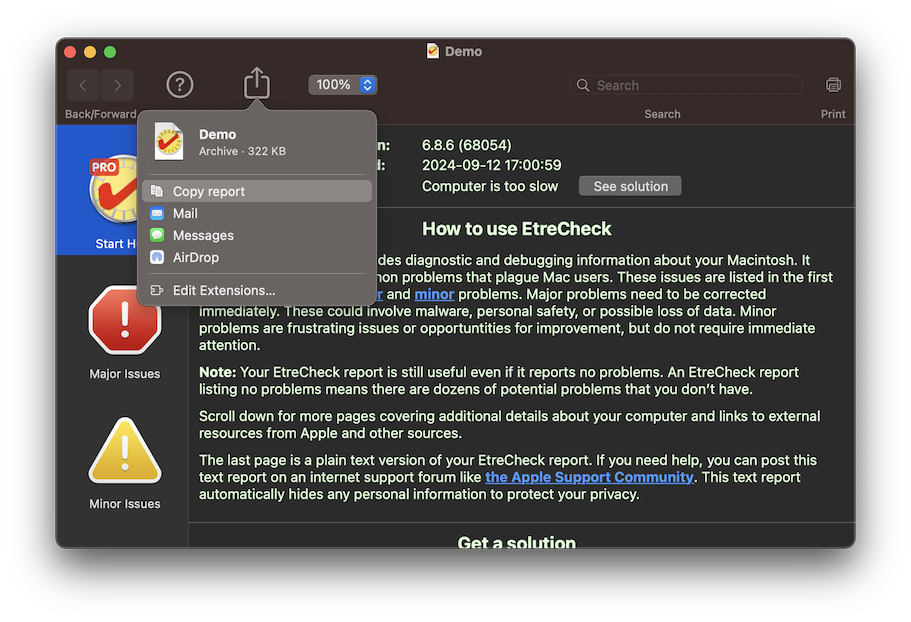
When the EtreCheck report is complete, you can share it by copying it to the clipboard. Please remember that Etresoft, Inc. cannot guarantee the accuracy of any suggestions you may receive on an internet discussion forum.